Your First Day with ScanIt Parts
What is ScanIt Parts?
ScanIt Parts is a comprehensive inventory management system designed specifically for automotive dealerships. It uses barcode scanning technology to track parts as they move through your warehouse — from receiving shipments, to storage, to fulfilling customer orders and delivery.
The system integrates with your Dealer Management System (DMS) to keep inventory records synchronized and accurate. Supported DMS platforms for full daily operations: CDK, Reynolds & Reynolds, DealerTrack, Automate, AutoSoft, and Dominion VUE. Lightspeed is supported for physical inventory only (CSV workflow).
Two Ways to Access the System
There are two ways to work with ScanIt Parts:
- Scanner App — An Android application on handheld barcode scanning devices. This is what you use for warehouse tasks like receiving, bin changes, picking, and packing.
- Web Interface — A browser-based application accessible from any computer. This is for management tasks like reports, settings, monitoring, and end-of-day processing.
As a parts department employee, you will spend most of your time using the scanner. Managers and administrators will also use the web dashboard at sip.ipsdev.com.
Logging Into the Scanner
When you arrive at work and pick up your scanner, follow these steps to log in:
- Power on your Android scanner device.
- Make sure the device is connected to Wi-Fi (the Wi-Fi icon should appear in the status bar).
- Open the ScanIt Parts application — it launches automatically on most scanners.
- Enter your Scanner Username.
- Enter your Scanner PIN (a numeric password).
- Tap Connect to log in.
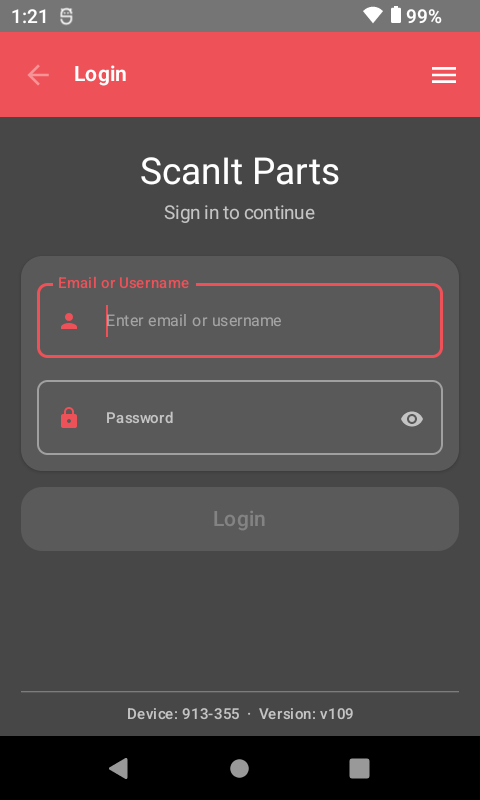
Important: Your scanner credentials (Username and PIN) are different from your web login (email and password). Ask your manager if you don't know your scanner credentials.
Username Rules: Scanner usernames must contain only letters, numbers, dashes, and underscores. Spaces are not allowed. For example, "john_smith" and "jsmith-01" are valid, but "john smith" is not.
Selecting Your Store
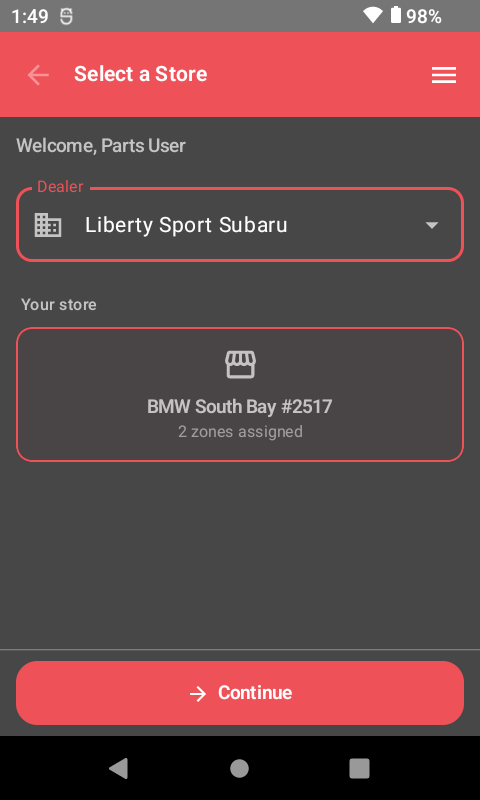
If your dealership has multiple locations, you will be prompted to select which store you want to work with after logging in. Tap the store name to proceed.
Navigating the Main Menu
After logging in, you will see the scanner's main menu. This is your home screen — every task starts here. Here are the options you will use most often:
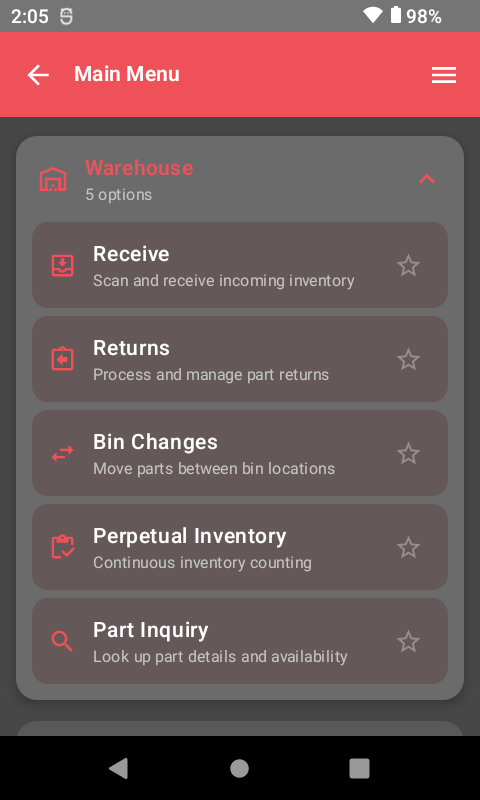
- Receive — Scan incoming parts from vendor shipments. Use this when boxes arrive at the parts counter.
- Bin Changes — Move parts between storage locations. Use this when reorganizing your warehouse or relocating stock.
- Perpetual — Count inventory in bins (cycle counting). Use this for regular inventory verification.
- Part Inquiry — Look up any part by scanning its barcode. See bin location, stock levels, pricing, and description instantly.
- Part Lists — Work with groups of parts for batch operations.
- Point of Sale — Track counter sales when parts are sold directly to walk-in customers.
- Other Items — Handle cores, warranty items, and special items.
If your store uses PickIt for order fulfillment, you will also see additional menu options including Pick To Route, Pick-It and Pack-It. Dealerships with Delivery also get Load-It and Deliver-It. (Ship-It is the old name for those last two — it was renamed and split.)
Barcode Scanning Basics
ScanIt Parts reads every barcode format used in the industry — 1D barcodes (UPC, Code 128, Code 39), 2D barcodes (Data Matrix, PDF417), and QR codes. It works with all OEM and manufacturer labels across automotive (GM, Ford, Toyota, Jaguar, Land Rover, and all makes), powersports (Yamaha, Kawasaki, Harley Davidson, Suzuki, Polaris, Sea-Doo, Can-Am, Indian, and more), and heavy-duty (Caterpillar, Detroit Diesel, International, Cummins) industries.
To scan a part, simply point the scanner at the barcode and pull the trigger. The scanner reads the barcode instantly and looks up the part in your DMS.
No barcode on the box? You can type the part number manually. If a part has no barcode at all, type the part number and your scanner can print an adhesive barcode label to attach directly to the part.
What to Expect on Your First Day
On your first day, your manager will likely have you shadow an experienced employee. Here is what a typical first day looks like:
- Morning: Log into the scanner, help receive the daily shipment by scanning incoming parts.
- Mid-morning: Practice using Part Inquiry to look up parts and learn where things are stored in the warehouse.
- Afternoon: Help with cycle counting a section of bins, or assist with filling orders using PickIt.
Don't worry about memorizing everything at once. The scanner guides you through each process, and you can always return to these tutorials for a refresher.
Related Resources
Ready to See ScanIt Parts in Action?
Schedule a personalized demo and see how ScanIt Parts can transform your parts department.
Request a Demo